
Listen To
All system audio, which is the default and needs nothing set. The same menu lists what is playing right now if you would rather narrow it to one app, and that choice sticks until you change it.
Subtitles · Setup guide
Installing takes a minute. The first launch takes longer, because the speech model downloads before anything can be captioned. One step in the middle can go wrong silently, and this page exists mostly so you can spot it in ten seconds rather than an hour.
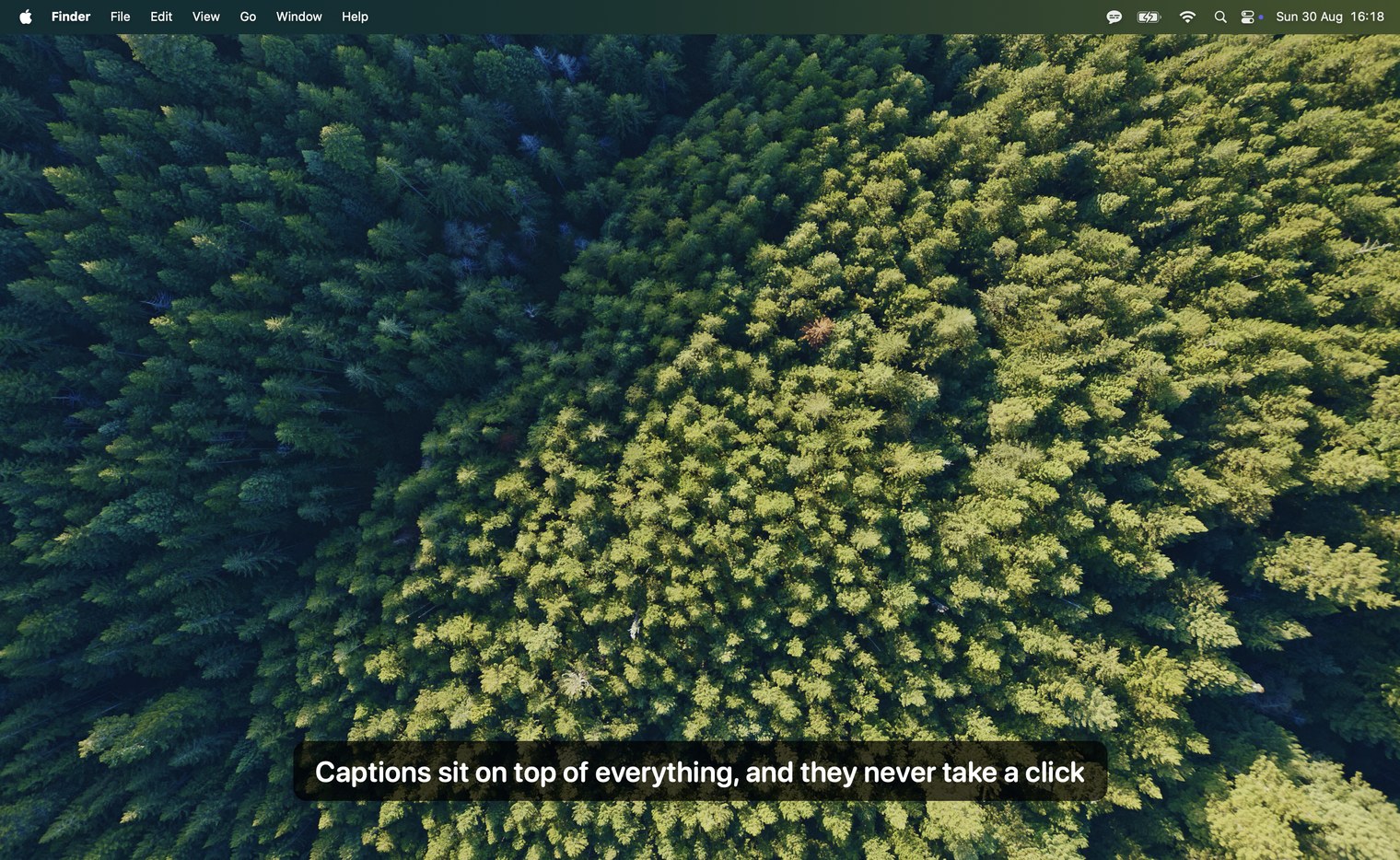
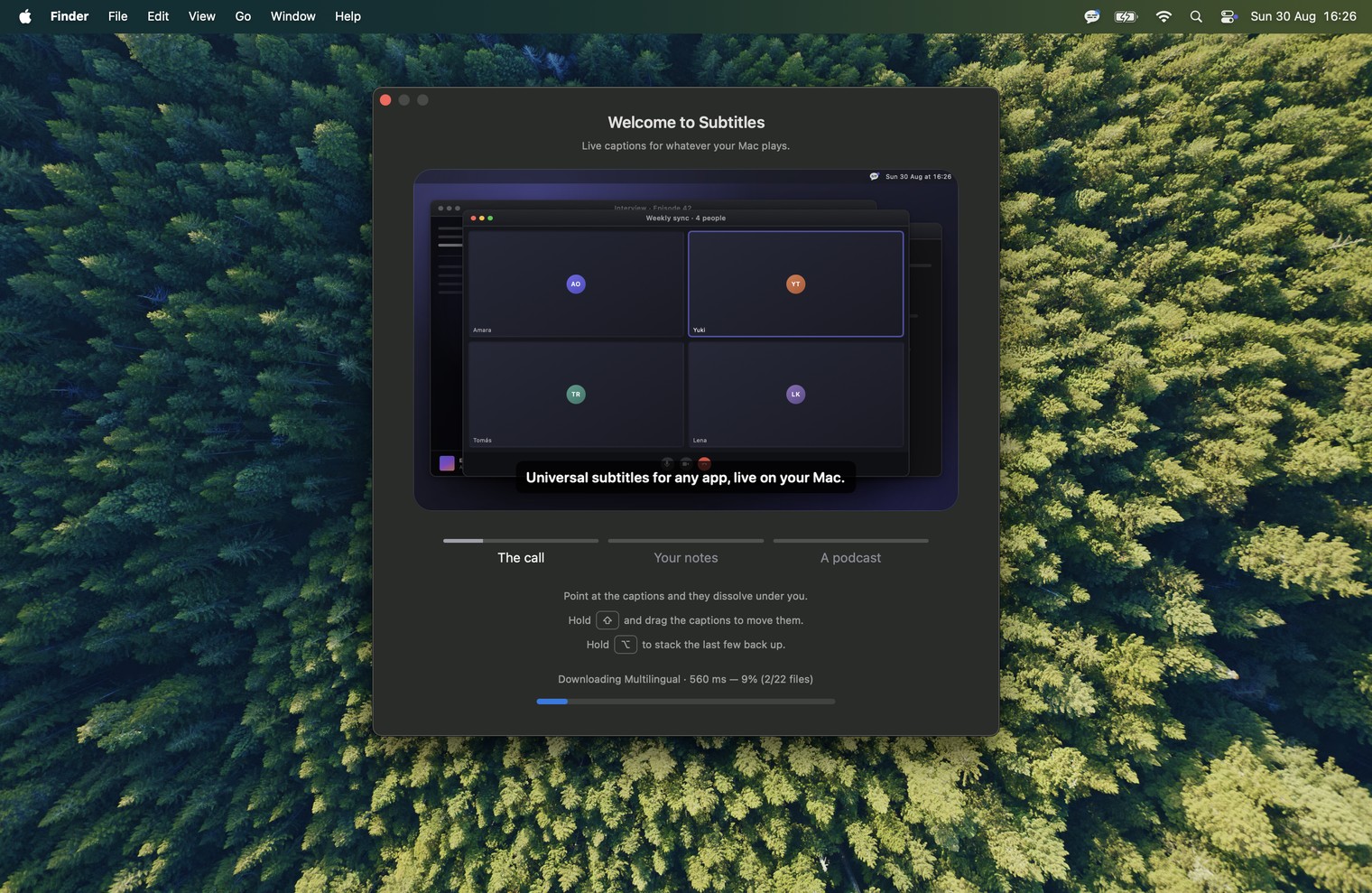
Drag it to Applications and open it. There is no Dock icon and no window to arrange: it lives in the menu bar. What you get first is a short welcome that shows the app doing its three jobs.
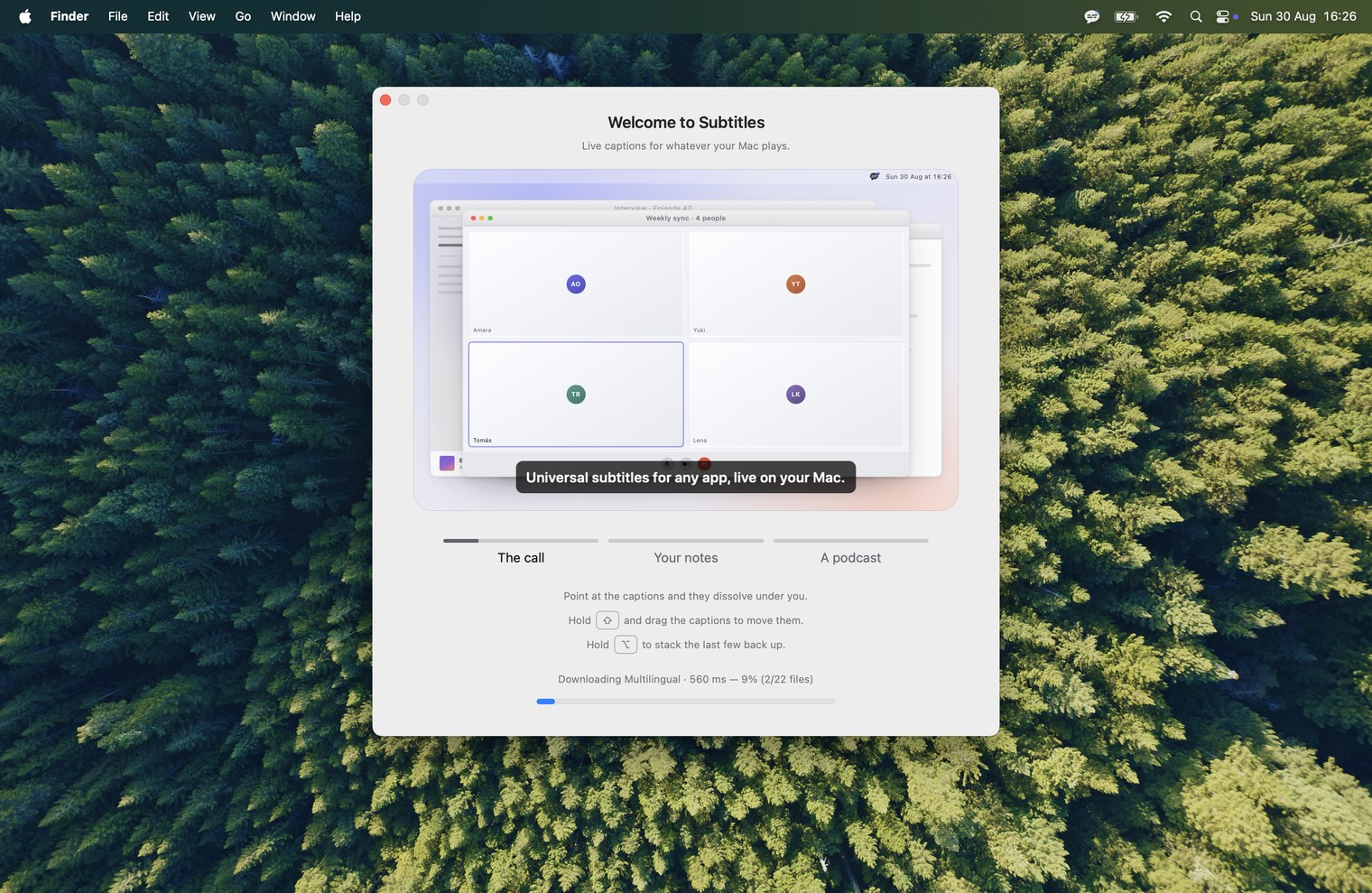
Behind it, the model is downloading. The menu bar icon carries a pulsing dot while that runs, and the menu itself shows a percentage and a file count. First launch takes minutes; every one after it takes seconds.
macOS asks for permission to record system audio. If you miss that prompt, or dismiss it, nothing will tell you. Core Audio keeps returning success, the tap reports itself running, buffers arrive at the right size and cadence, and every single sample is zero. There is no error anywhere in the stack, so the app looks installed and working and simply never captions anything.
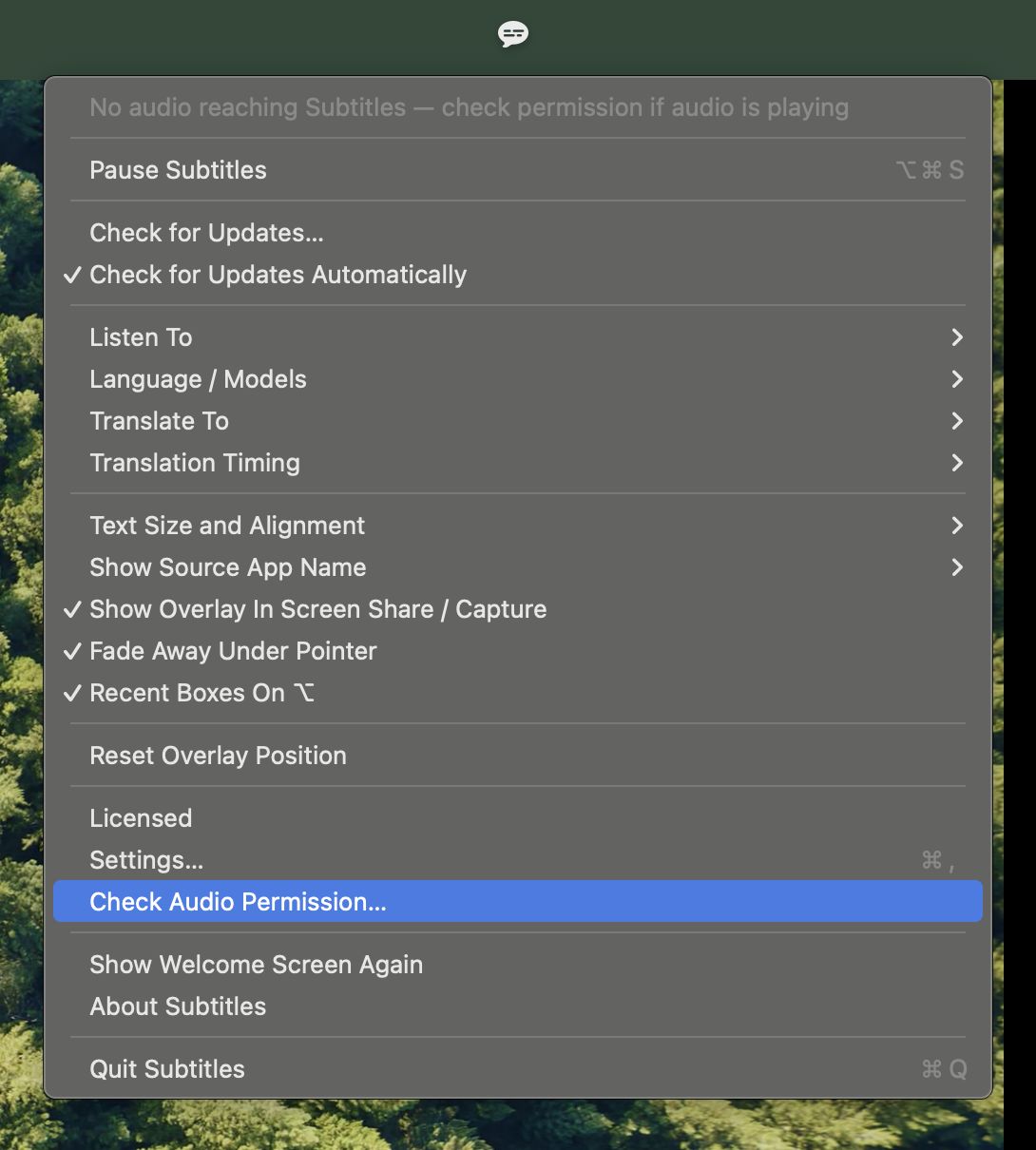
If you see no captions and no error, this is almost always why. The menu has Check Audio Permission…, which opens the right pane of System Settings; Subtitles should be ticked under Privacy & Security ▸ Audio Recording. There is no API that reports whether the grant exists, so the app does not pretend to know.
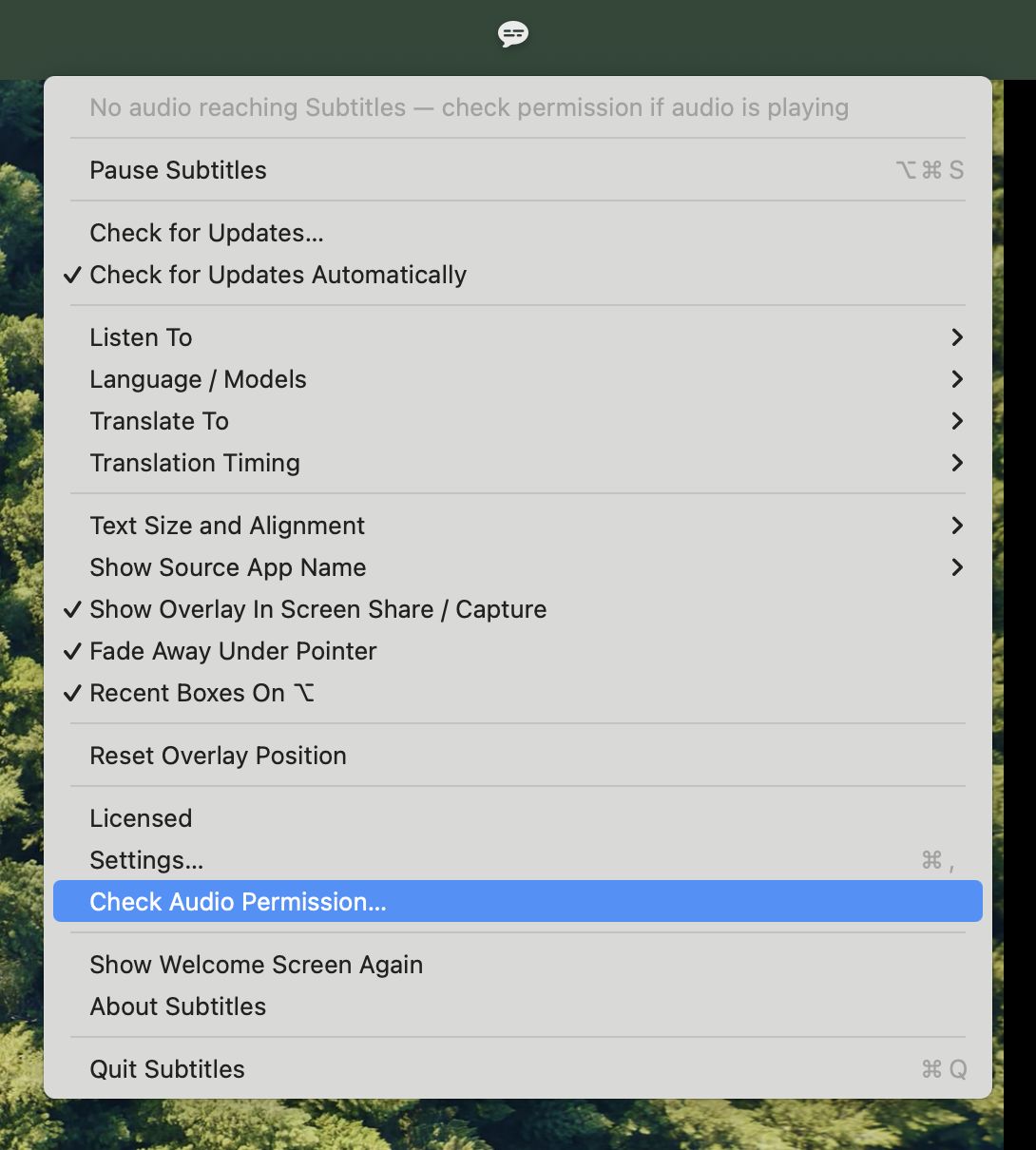

All system audio, which is the default and needs nothing set. The same menu lists what is playing right now if you would rather narrow it to one app, and that choice sticks until you change it.
Auto-detect leads, and covers sixteen languages. English has its own models with a speed and accuracy trade-off; the other languages come from one multilingual model. Moving within a pack is instant, crossing between packs is another download.
Off until you pick a language, and then captions arrive in that one instead. Any of the sixteen into any other, on the machine, through Apple's own translator. Translation Timing below it decides what you see while a sentence is still being said. Both rows need macOS 15; below that they are absent. How it works.
Skip Non-Speech keeps music from becoming invented lyrics. New Box On Speaker Change is off by default and worth turning on for calls. Fade Away Under Pointer stops the overlay hiding what is beneath it. Show Overlay In Screen Share / Capture is on, and turning it off takes the captions out of anything recording your screen.
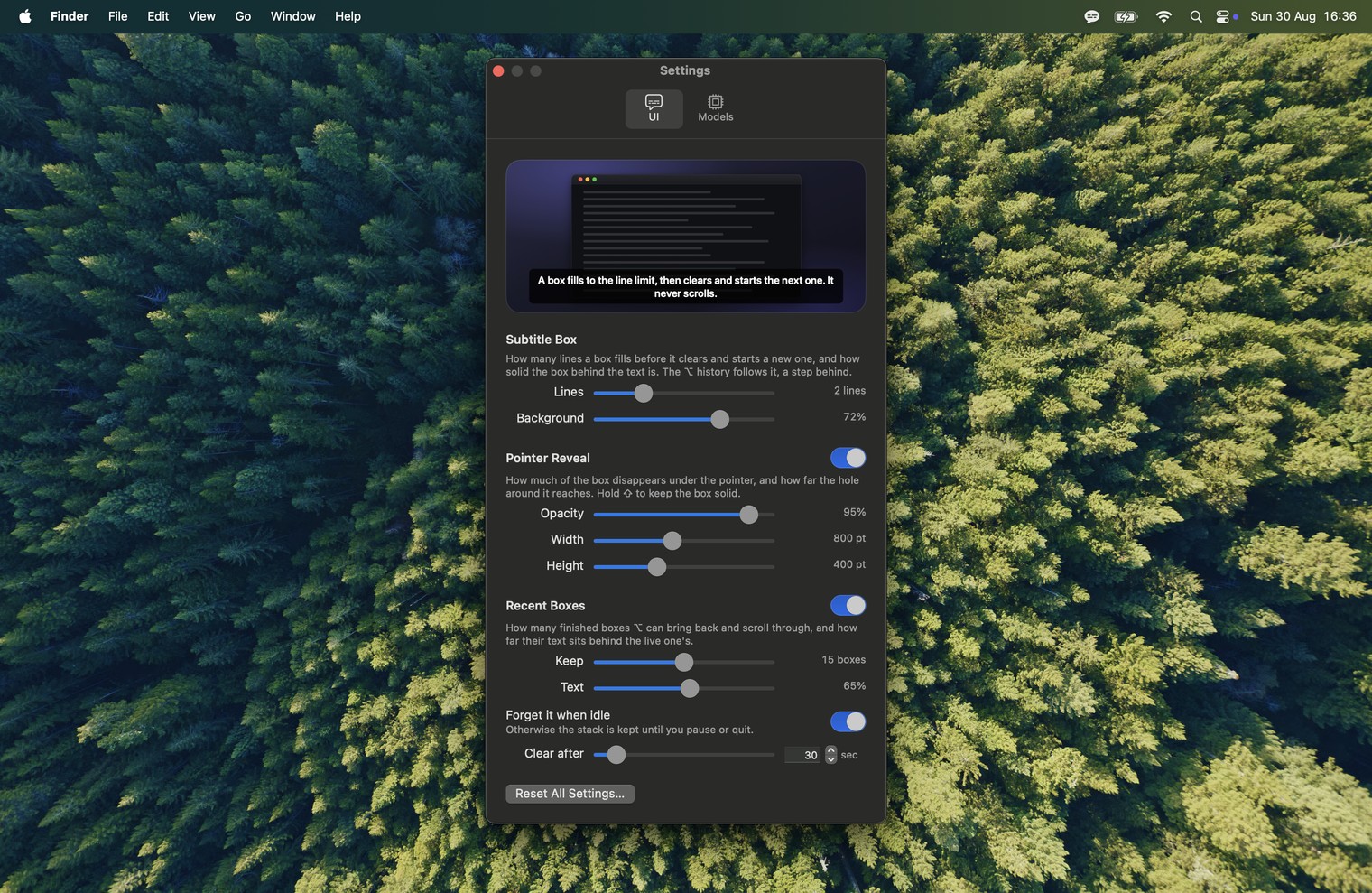
Box size, opacity, how many lines it keeps and how far back the rewind goes, all previewed on the real overlay rather than in a mockup. The model cache can be cleared from the same window.
The row above Settings reads Trial: N days left, Enter License Key… or Licensed, and opens the license window. Paste the key from your receipt or your Gumroad library, in any case or spacing, press Activate, and the window says in place what became of it. Buy a Key and Where Is My Key? are in the same window, and one key covers every Mac you use.
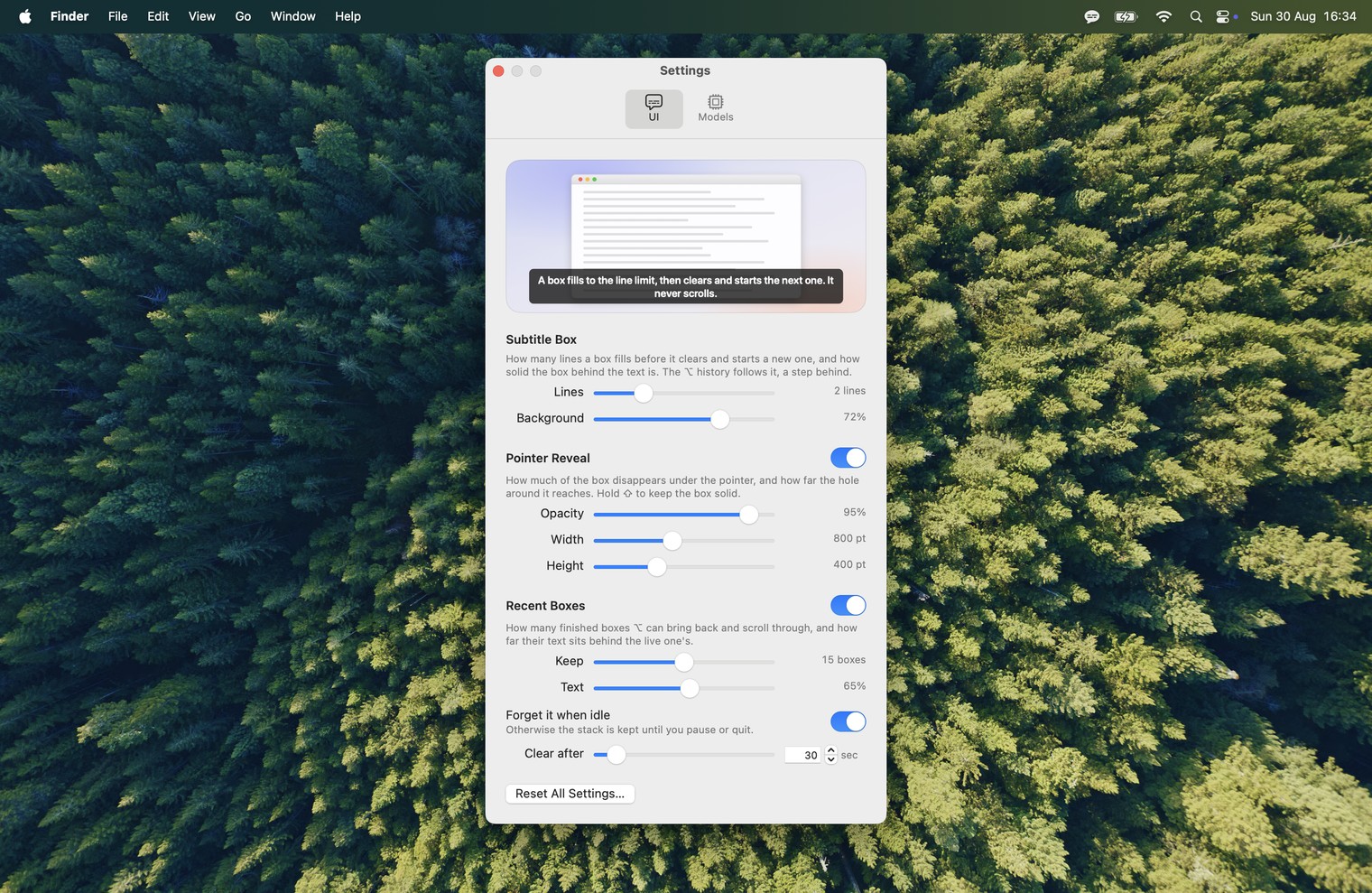
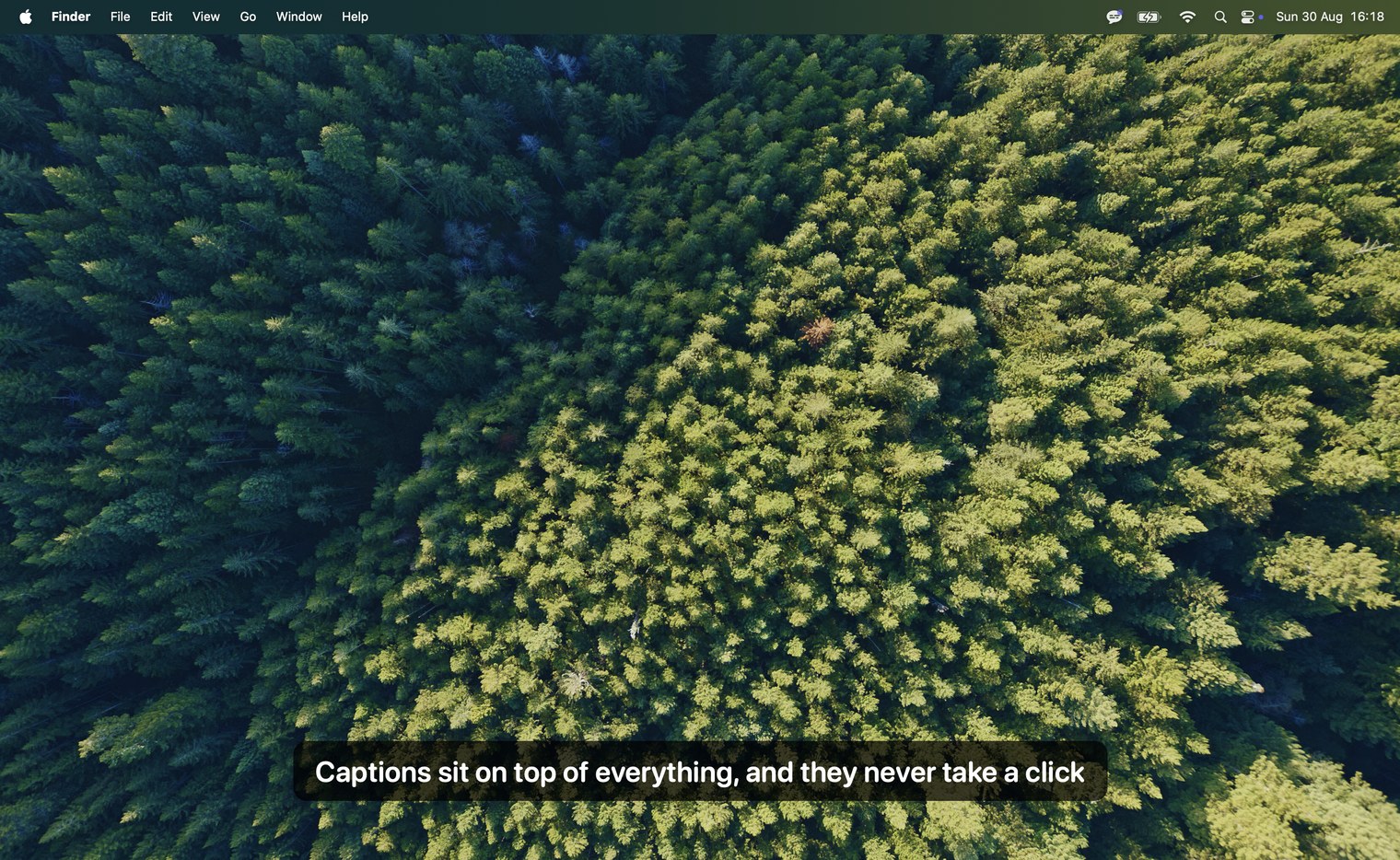
The overlay takes no clicks, so you work straight through it. These are the only things it wants from your keyboard.
Subtitles in the language being spoken, and translation when you want it.
macOS has this built in and free. Where it stops being enough.
Captions without the host switching anything on.
Captions that do not depend on what your tenant's admin allows.
On-device captions, and no Workspace tier to be on.
Captions with no workspace app to get approved.
Captions live, rather than once the recording is processed.
Captions for the shows that never had a transcript.
Complementary, not alternatives. Notes after, captions during.

Until 31 October: $9 instead of $19 · 14-day refund
14-day refund, no questions asked
Free for 7 days, then $19 once, every future update included ·
macOS 14.2 or later · Apple silicon
Unlimited live captions, for as long as you own the Mac. No minutes to
buy, no account, no subscription.