Subtitles · Live translation

Captions in your language,
while the sentence is still being said.

Subtitles writes down whatever your Mac is playing. Since version 1.3 it can also translate that as it arrives, between any two of the sixteen languages it hears, on the machine, through Apple's own translator. Nothing is uploaded to translate it, which is the only version of this worth building.

14-day refund, no questions asked

One-time $9 · macOS 15 for translation, 14.2 for everything else · Apple Silicon

Two rows in the menu

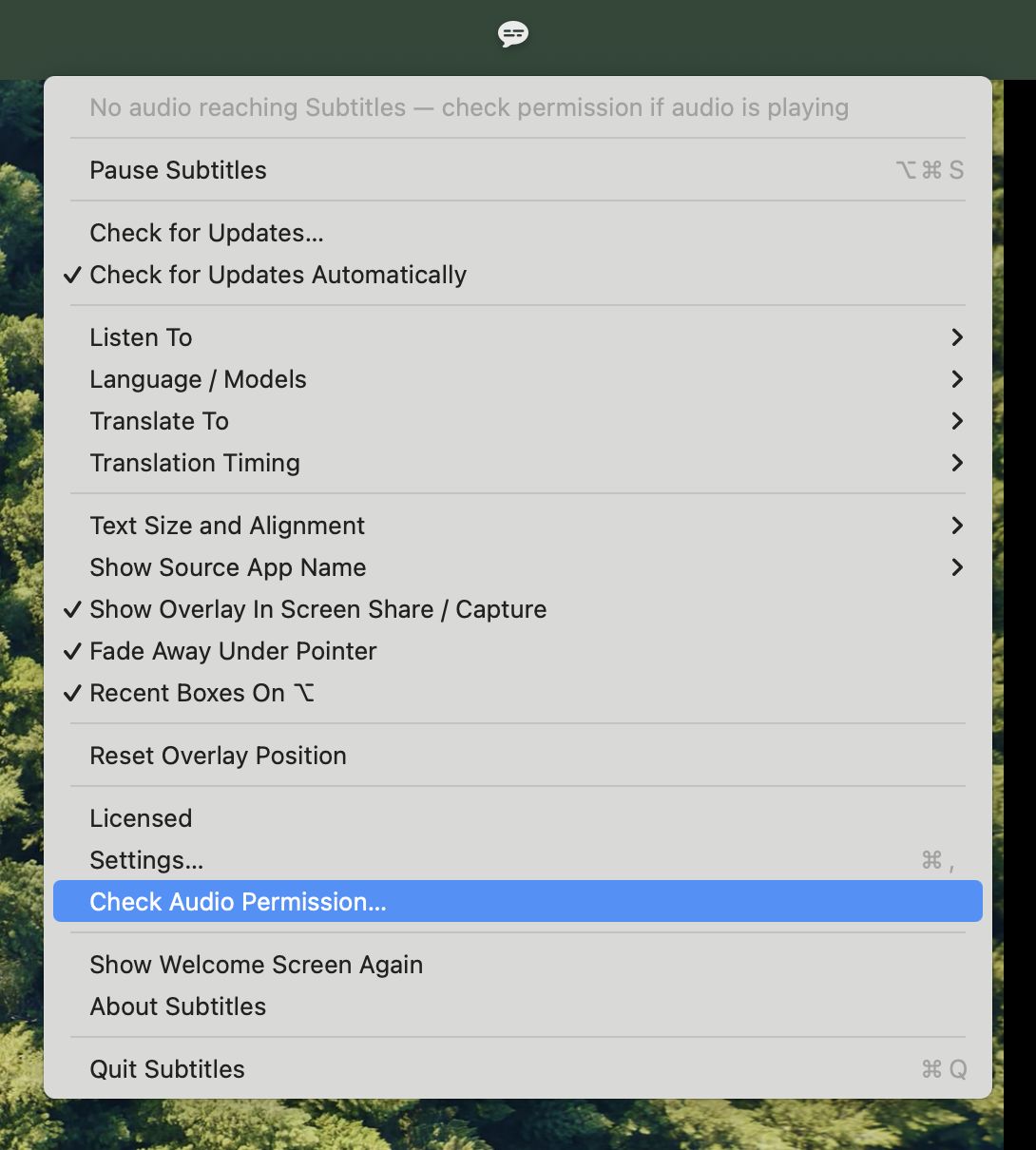
Translate To sits under the language picker and starts on Off. Choose a target and captions arrive in that language from the next sentence onwards. Translation Timing below it decides what you see while a sentence is still being spoken, which turns out to be the whole design problem.

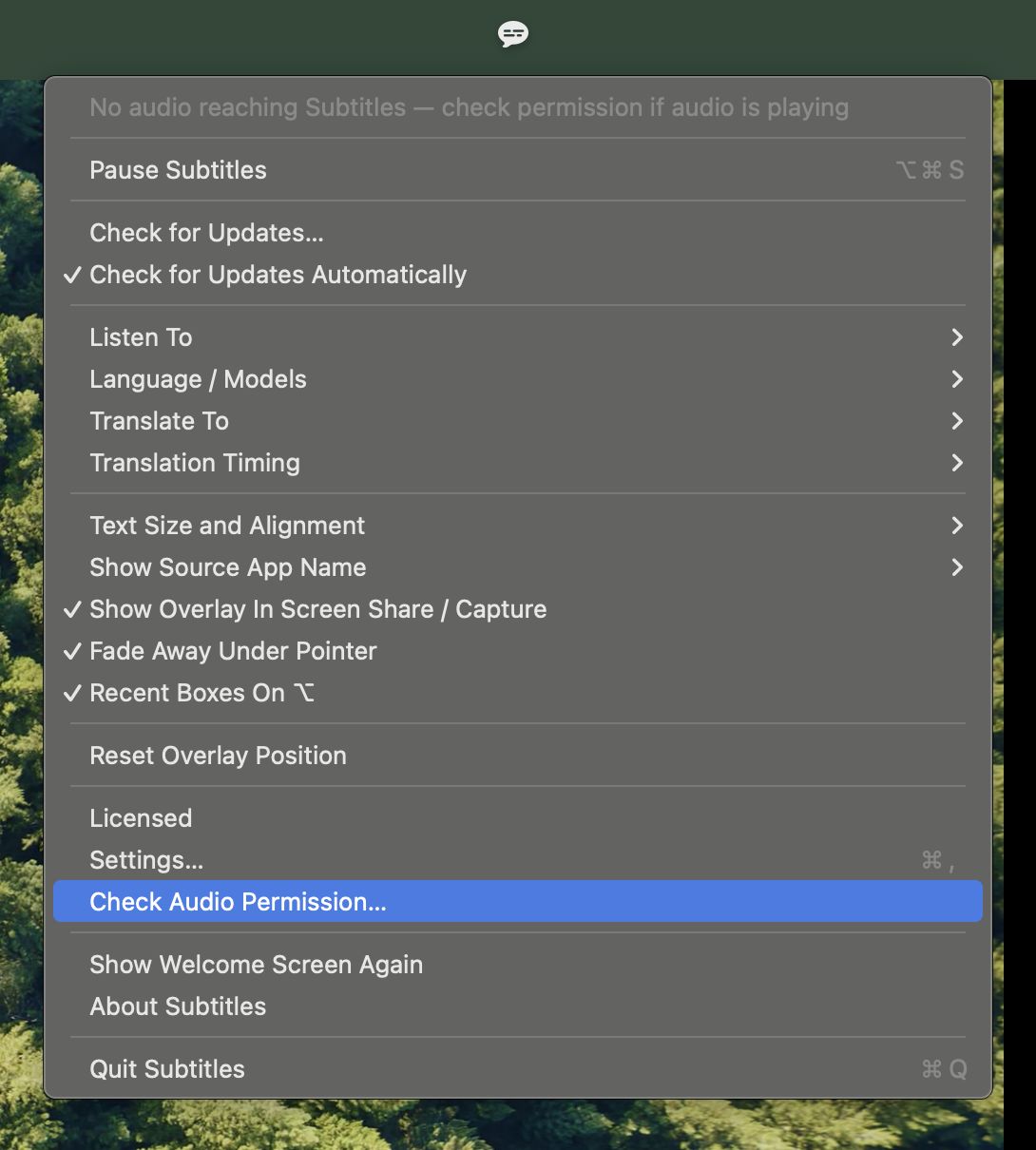
The Subtitles menu, with Translate To and Translation Timing under Language / Models
Both rows are absent on macOS 14, rather than greyed out.

The hard part is the sentence nobody has finished

Translating a finished sentence is quick: 40 to 125 ms on this hardware, which is nothing next to how long it takes somebody to say one. The real question is what belongs on screen in the seconds before they get to the end of it, and there is no answer that is right for everybody. So there are two, and you pick.

Live, Then Settle

The last second of speech is retranslated on every update and shown dimmed until it settles. Dim text may still change; bright text has stopped. You read a page that mostly stays put, at the cost of the newest few words looking provisional, which they are.

Always Live

Everything is retranslated on every update. Nothing lags behind the speaker and nothing is held back, and the price is that a line you have already read can be rewritten under you as the sentence reaches the word that changes it.

Underneath both, one rule that is not optional: clauses are translated whole, never the box. The overlay breaks a page wherever the text runs out of room, which lands mid-sentence most of the time, and a fragment translated on its own loses the case, the gender agreement, or a verb the speaker had not reached yet. So what gets translated and what gets shown are two different units, and the page breaks happen afterwards, in prose that already makes sense.

A box that fills up and turns over restarts at the last clause it showed rather than at the word that spilled, so there is a line to re-anchor on instead of a hard cut. Only when it turned over quickly: a box that sat there long enough to read already gave you that.

Hold and the original comes back

Translation costs you the thing you were listening to. Holding puts it back: the live box and the stack both switch to the language being spoken, for exactly as long as you hold the key. The translation carries on underneath while you look, so letting go returns you to current text rather than to the snapshot you left, and each language keeps its own history so the stack never mixes the two.

For anyone learning the language that is the useful shape: read your own when you have lost the thread, and press nothing the rest of the time.

Every pair, not a detour through English

Sixteen languages make 240 ordered pairs, and all of them work. That is why translation is a second step here rather than a setting on the recogniser: speech models that translate while they transcribe are trained to and from English, so French into German would have to go through English, and several of these languages are not in their sets at all. Handing finished text to a translator that covers every pair costs a few tens of milliseconds and covers everybody.

On auto-detect the source language is taken from the recogniser's own language tag, which it knows within a word or two of speech, rather than by asking the translator to guess it one sentence at a time.

Still nothing leaving the Mac

The audio never left, and the translated text does not either. It runs through Apple's Translation framework, which is the same on-device translation the rest of macOS uses, so there is no server in this, no key to hold and no account to have. The one network moment is macOS asking to download a language pair the first time you use it, which it does for its own translation too; after that the pair is on disk and there is nothing left to fetch.

Nothing is written down either way. A translated caption is on screen and then it is gone, the same as an untranslated one, and the privacy page is short for the same reason it always was.

Worth knowing before you rely on it

  • macOS 15 or later, for this feature only. Apple's translator arrives there. On 14.2 the app still captions everything it always did, and the two rows are absent from the menu rather than greyed out.
  • It translates what it heard, not what was said. A name the recogniser got wrong is translated faithfully as the wrong name. Errors do not cancel out in the second step, and where accuracy matters most, pinning the spoken language instead of leaving it on auto-detect is the setting that helps.
  • Authored subtitles are better, where they exist. A translation somebody wrote, checked and timed beats this every time. This is for the audio that never had one: the call, the huddle, the lecture, the podcast, the video with only its original track.
  • One direction at a time. There is a target language, not a pair of them, so a call in two languages is translated into your one, and is how you see what was actually said.

Questions about translation

Which languages can it translate between?
Any of the sixteen it captions into any of the other fifteen: English, Spanish, French, Italian, Portuguese, German, Dutch, Turkish, Russian, Arabic, Hindi, Japanese, Korean, Vietnamese, Ukrainian and Mandarin. That is 240 ordered pairs, and none of them go through English on the way.
Does the audio leave my Mac to be translated?
No. The audio never leaves in the first place, and neither does the text: translation runs through Apple's Translation framework, which works on device. macOS may ask to download a language pair the first time you use it, the way it does for any of its own translation, and after that the pair is on disk and the app makes no network call at all.
What is the difference between the two timings?
Live, Then Settle translates the last second of speech on every update and dims it until it settles, so bright text has stopped changing and dim text may still move. Always Live retranslates everything on every update: nothing lags behind the speaker, and anything on screen can still be rewritten. Live, Then Settle is the calmer one to read; Always Live is the one that never leaves you a sentence behind.
Can I see the original language as well?
Hold . The live box and the stack both switch to the language being spoken for as long as the key is down, and the translation carries on underneath, so letting go shows you current text rather than the snapshot you left. Each language keeps its own history, so the stack never mixes the two.
Which macOS does translation need?
macOS 15, because that is where Apple's Translation framework arrives. Captioning still runs on 14.2, where Translate To and Translation Timing are simply not in the menu rather than greyed out.
Is this the same as subtitles on a streaming service?
No. A streaming service ships a translation somebody wrote, checked and timed, and where one exists it is better than this. This is for the audio that never had one: a call, a huddle, a lecture, a podcast, a video with nothing but the original track.

Sixteen languages in, the one you read out.

14-day refund, no questions asked

One-time $9, every future update included · macOS 14.2 or later · Apple Silicon
Unlimited live captions, for as long as you own the Mac. No minutes to buy, no account, no subscription.